Website Not Secure: What It Means, Causes, How to Fix It
A “Website Not Secure” warning appears when a website does not use a valid SSL certificate or secure HTTPS connection. It indicates that data shared on the site, such as passwords, payment details, or personal information, may not be encrypted and could be vulnerable to cyber threats.
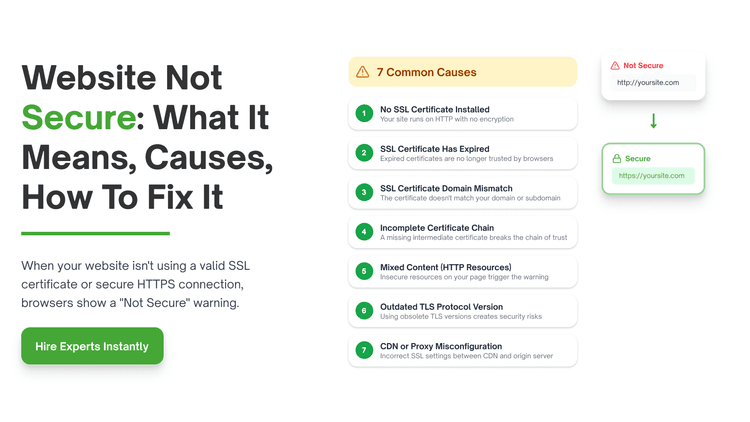
Table of Contents
You open your browser, type in your website address, and right there next to your URL, sit in a small but annoying message: "Website Not Secure."
If you've seen this, you already know how unsettling it feels. And the frustrating part? Sometimes it shows up even after you've gone through the trouble of installing an SSL certificate. That's when most people start pulling their hair out.
Here's what makes this worse than it looks. Non-secure websites see a 50% average higher bounce rate than secure ones, and 95% of Google's top-ranking pages run on HTTPS. So that little warning isn't just an eyesore; visitors notice it; they get nervous, and a good chunk of them leave without reading a single line of your content.
This guide breaks down what that warning actually means, walks through the seven real reasons it appears, and gives you clear, practical fixes for how to fix website not secure in Chrome and other platforms as well, including the maddening scenario where SSL is already installed but the warning still won't go away.
What Does "Website Not Secure" Actually Mean?
Most people assume this warning means something dramatic, like their site has been hacked, or someone is actively stealing data. That's not quite right.
When a browser like Chrome, Firefox, or Safari labels your site as "Not Secure," it simply means the connection between your visitor's browser and your web server is not encrypted. The data going back and forth, form submissions, login details, anything typed on your site could, in theory, be read by a third party if intercepted.
This encryption is managed by something called an SSL/TLS certificate. When one is properly installed and active on your site, the URL starts with https:// (that "S" stands for secure), and a padlock appears in the address bar. When it's missing, expired, or misconfigured in any way, the padlock disappears, and the warning takes its place.
From a purely technical standpoint, the warning doesn't confirm anything bad has happened. But from a visitor's perspective, especially someone about to fill in their email address, create an account, or buy something that warning is usually enough reason to close the tab and move on.
Common Causes of the "Website Not Secure" Warning
Knowing how to fix website not secure in chrome lets us move towards common reasons behind this. This is where most guides get it wrong. They tell you to "install SSL" and leave it at that time. But the "Not Secure" warning has several different causes, and the fix depends entirely on which one you're dealing with.
1. No SSL Certificate Installed
This is the most basic case. Your website is running on plain HTTP with no SSL certificate in place, so there's no encryption at all. Browsers, Chrome especially now flags every HTTP site as "Not Secure" by default, with no exceptions.
If you've never set up SSL for your site, this is your starting point. The practical side of it isn't as complicated as it sounds. Free certificates are available through Let's Encrypt, and most hosting providers such as Bluehost, Site Ground, Hostinger, and others include SSL at no extra cost within their hosting plans. It's usually a one-click setup from your hosting control panel.
Once installed, your URL will shift from http:// to https://, and the padlock will appear. That said, installing the certificate alone isn't always enough to make the warning disappear entirely — which brings us to the causes further down this list.
2. SSL Certificate Has Expired
SSL certificates have an expiry date. Most are valid for anywhere between 90 days and 2 years, depending on the type and provider. The moment one expires, browsers immediately stop trusting it, and the "Not Secure" warning returns even if everything was working perfectly the day before.
This catches a lot of website owners off guard. You set it up once, it works, and then months or years later the warning is back, and you can't figure out why. Sometimes the first sign is a visitor message or an unexpected drop in traffic.
To check whether your certificate has expired, click the warning icon or padlock in your browser's address bar and look for the certificate details. The expiry date will be listed there. If it's past due, you'll need to renew it through your hosting control panel or certificate provider. Most platforms now offer auto-renewal. Turning that on is the easiest way to make sure this never catches you by surprise again.
3. SSL Certificate Domain Mismatch
Every SSL certificate is tied to a specific domain name. If the certificate was issued for www.yoursite.com but a visitor types in yoursite.com without the www (or the other way around), the browser sees a mismatch between the domain in the certificate and the domain in the address bar, and it throws a warning.
This also comes when people migrate to a new domain without reissuing their certificate, or when a staging subdomain accidentally uses a certificate meant for the live site.
The fix is to make sure your certificate covers both the www and non-www versions of your domain. Most modern SSL certificates handle this automatically, but it's worth checking. If yours doesn't, you can either reissue it to include both versions and look at a wildcard certificate, which covers all subdomains under a single domain in one go.
4. Incomplete Certificate Chain (Missing Intermediate Certificate)
This one tends to confuse people because the certificate itself is valid, but the browser still won't trust it.
SSL works through a chain of trust. Your certificate is signed by an intermediate certificate, which is then trusted by a root certificate authority (CA), organizations like DigiCert, Comodo, or Let's Encrypt that browsers trust. If that intermediate certificate isn't properly installed on your server, the chain breaks. The browser can't verify the full trust path and shows a warning, even though your main certificate is fine.
The easiest way to diagnose this is to run your domain through SSL Labs' free SSL Test at ssllabs.com/ssltest. If you see a broken chain in the results, download the intermediate certificate from your certificate authority dashboard and install it on your server alongside your main certificate. Your hosting provider's support team can usually walk you through the exact steps for your server type.
5. Mixed Content (HTTP Resources on an HTTPS Page)
This is the cause that trips up the most people — and it's the main reason the warning persists even after SSL has been installed.
Here's the situation: your page loads over https://, which is correct. But somewhere in your HTML, there's a resource, an image, a JavaScript file, a stylesheet, a font, a video embed — that's still being called from an http:// URL. The browser sees a secure page trying to load an insecure resource, detects the conflict, and flags the whole page.
Picture it like this: you've locked the front door of your house, but there's a window left open at the back. The house isn't fully secure, and the browser knows it.
Mixed content tends to come from a few common places:
Images that were uploaded before SSL was active and saved with http:// paths in your database
Third-party embed codes maps, YouTube videos, social widgets — that still reference HTTP sources
Themes, plugins, or templates that have HTTP URLs hardcoded into them
A CMS where the base site URL was never updated from http:// to https:// after SSL was installed
To track down what's causing it, open Chrome DevTools by pressing F12, click on the Console tab, and reload your page. Any mixed content issues will show up there as warnings or errors, complete with the exact URLs causing the problem, which makes the fixing part much more straightforward.
6. Outdated TLS Protocol Version
SSL and TLS are closely related, TLS (Transport Layer Security) is the actual protocol running underneath HTTPS. Older versions of this protocol, specifically TLS 1.0 and TLS 1.1, have known security weaknesses and have been officially retired by major browsers and internet standards bodies.
If your server is still configured to use these older versions, modern browsers will flag your site as insecure even when a valid SSL certificate is in place. It's a protocol-level issue, not a certificate issue, and the two are often confused.
The fix is to update your server's SSL configuration to disable TLS 1.0 and 1.1 and ensure TLS 1.2 or TLS 1.3 is enabled. If you're sharing hosting, your provider may have already handled this as part of a routine update. If you manage your own server, you'll need to edit the SSL configuration file for Apache or Nginx. SSL Labs will clearly identify this in its test report if it's the issue.
7. CDN or Proxy Misconfiguration
If your website runs through a CDN (Content Delivery Network) like Cloudflare, or behind a load balancer, SSL configuration gets a bit more layered. The CDN might handle SSL between the visitor and the CDN's servers, but if the connection between the CDN and your actual origin server runs over plain HTTP, the end-to-end security isn't complete.
Cloudflare, for example, offers a mode called "Flexible SSL" which encrypts traffic between visitors and Cloudflare, but leaves the Cloudflare-to-origin leg unencrypted. Some browsers and configurations will catch this and still show the warning.
The correct setup is Full (Strict) SSL in Cloudflare, which requires a valid certificate on both ends. If you're on a different proxy or load balancer, check that the X-Forwarded-Proto header is being passed through correctly, this tells your application that the incoming request came in over HTTPS, so it generates secure links throughout the site rather than defaulting back to HTTP.
The "Not Secure" Severity Scale and Which Issues to Fix First
The first three are the most urgent because they represent a complete gap in your site's security setup. Mixed content and TLS issues are serious too, but they're more about completeness than a total absence of protection.
Every hour your site shows "Not Secure," you're losing visitors who'll never come back, and the clock is ticking. If you don't have the right person on your team to tackle these fixes, don't let that be the reason your site stays broken. QuickHire gets you a verified SSL expert, developer, or IT resource in under 10 minutes, so the fix that should take 20 minutes actually takes 20 minutes, not 3 weeks of waiting.
How to Fix the "Website Not Secure" Warning: Step by Step
Now that the causes are clear, here's how to work through the fixes in a logical order. Treat this as a checklist for how to fix website not secure in chrome, go through it from top to bottom rather than jump around.
Step 1- Run an SSL Diagnostic First
Before changing anything, get a clear picture of what's actually broken. Two free tools make this quick:
SSL Labs SSL Test (ssllabs.com/ssltest): gives a full breakdown of your certificate validity, chain completeness, TLS version, and cipher strength, with letter grades
WhyNoPadlock (whynopadlock.com): built specifically to identify mixed content issues on HTTPS pages
Run both, read the results, and note the specific errors flagged. This tells you exactly what needs to be fixed, so you're not changing things at random.
Step 2: Install or Renew Your SSL Certificate
If the diagnostic shows no certificate or an expired one, here's what to do:
Free route: Enable Let's Encrypt through your hosting control panel, most hosts have a one-click option under the Security section
Paid route: Purchase through your domain registrar or a CA like DigiCert if you need OV or EV validation for enterprise or financial purposes
In cPanel: Look for "SSL/TLS" or "Let's Encrypt SSL" under the Security section and follow the prompts
Once installed, run the SSL Labs test again to confirm it's active and the grade looks healthy before moving to the next step.
Step 3: Force HTTPS with a 301 Redirect
With SSL active, the next step for website not secure is making sure all HTTP traffic automatically redirects to the HTTPS version. For Apache servers, add this to your .htaccess file:
RewriteEngine On
RewriteCond %{SERVER_PORT} 80
RewriteRule ^(.*)$ https://www.yourdomain.com/$1 [R,L]
For Nginx, add a dedicated server block to handle the redirect. If you're on cPanel or a managed hosting platform, look for a "Force HTTPS" toggle, many hosts now offer this as a simple on/off switch in the domain settings.
Step 4: Fix Mixed Content
This step is often where the bulk of the remaining work sits, especially for older or content-heavy sites.
Here's a practical approach:
Open Chrome DevTools (F12 → Console tab) and note every HTTP URL flagged as mixed content
For WordPress: install the Really Simple SSL plugin — it handles the redirect, updates the site URL, and fixes most mixed content in the database automatically
For manually built sites: do a global search in your code editor for http:// and replace all internal references with https://
For third-party embeds go back to the original source (YouTube, Google Maps, etc.) and grab the updated HTTPS version of the embed code — these are almost always available
Step 5: Update Your TLS Protocol Version
If SSL Labs flags TLS 1.0 or 1.1 as active on your server, update your configuration:
Apache: In your ssl.conf file, set SSLProtocol all -SSLv2 -SSLv3 -TLSv1 -TLSv1.1
Nginx: Set ssl_protocols TLSv1.2 TLSv1.3; in your config block
Shared hosting: Contact your host — most have already handled this, but support can confirm or update it for you
Step 6: Install the Intermediate Certificate if Needed
If SSL Labs shows a broken chain, download the intermediate certificate from your CA's dashboard (it's usually available in the same place you downloaded your main certificate) and install it on your server. The exact process varies by server type, but your hosting support team can guide you through it if you're not comfortable with server file management. If the warning persists, cybersecurity support to fix a hacked or insecure site is available on demand.
Step 7: Clear Cache and Retest
After making all the changes above next step in how to fix website not secure in chrome is to:
Test your site in an incognito window to bypass any browser cache
Clear your site's server-side cache if you use a caching plugin
Run the SSL Labs and WhyNoPadlock tests one more time to confirm everything checks out
At this stage, many teams find it more practical to bring in a specialist quickly rather than put other work on hold. If that's where things stand for you, we connect you with pre-screened full stack developers and DevOps professionals in just 10 minutes who can step in fast, without the delays of a traditional hiring process.
Platform-Specific Website Not Secure Fixes
The steps above apply broadly, but the exact changes depend on your platform therefore knowing how to fix website not secure in chrome is just not enough. Here's a quick reference for other most common platforms as well.
How to Fix a Website Not Secure on WordPress
WordPress stores the site's URL in its database, which means installing SSL doesn't automatically update all your internal links. Here's the full process:
Go to Settings → General and update both the WordPress Address and Site Address from http:// to https://
Install the Really Simple SSL plugin — it manages the redirect, updates the database URL references, and catches most mixed content issues automatically.
If older posts or images still load over HTTP, use the Better Search Replace plugin to run a find-and-replace across your database: change http://yourdomain.com to https://yourdomain.com
Add the 301 redirect to your .htaccess file as a backup safety net.
How to Fix Website Not Secure on Shopify
Shopify manages SSL automatically for all paid plan stores, so in most cases it's handled for you. If you're still seeing the website not secure warning:
Check that your custom domain is properly linked under Settings → Domains and the SSL status show as active
Look for any third-party apps, review widgets, or custom tracking scripts that reference HTTP URLs and update them
If the certificate shows "pending" after a recent domain change, give it up to 48 hours or contact Shopify support directly
How to Fix Website Not Secure on Wix or Squarespace
Both platforms handle SSL automatically on their end. When the warning shows up here, it's almost always caused by externally sourced content, embedded videos, third-party scripts, or images pulled from outside the platform using HTTP links.
Go through any custom code blocks or third-party integrations you've added and update them to use HTTPS versions of those URLs. For Wix specifically, check Settings → SSL to confirm the toggle is switched on.
How to Fix Website Not Secure on a Custom or HTML Website
For hand-coded sites, the process is more manual:
Install SSL through your hosting panel or directly on your server using Let's Encrypt
Go through your HTML, CSS, and JavaScript files and update every internal asset reference from http:// to https:// — or switch to protocol-relative URLs (//) which adapt automatically
Add the .htaccess redirect rule for Apache, or the equivalent server block for Nginx
Check every page individually, not just the homepage, static HTML sites are particularly prone to having HTTP asset paths buried in pages that don't get visited often
"I Already Installed SSL But My Website Still Shows Not Secure": Here's Why
This question comes up constantly, and it deserves its own section because it's genuinely one of the most searched sub-topics around this issue.
Installing an SSL certificate is the first step, but there are several things that can still keep the warning alive after installation. So, let's have a view on how to fix website not secure in chrome even after installing SSL.
Your internal URLs haven't been updated
If your site was originally built and running on HTTP, all the links, image paths, and resource references stored in your database still point to http:// addresses. Installing a certificate doesn't automatically update those. They need to be changed separately, either through your CMS settings, a plugin, or a database find-and-replace.
The HTTPS redirect hasn't been set up.
SSL being active and HTTP traffic actually being redirected to HTTPS are two different things. Without a 301 redirect in place, some visitors may still load over the old HTTP version. This is a separate configuration step that needs to happen in your .htaccess file or server settings.
Your browser is serving a cached version
Browsers store previously visited pages locally. If you or a visitor accessed your site before SSL was installed, the browser might still be loading the old, cached HTTP version. Always test in an incognito window, or try a completely different browser, to see what a fresh visitor actually sees.
Your CMS base URL is still set to HTTP.
In WordPress especially, the site URL is stored in the database. If it was saved as http://yourdomain.com before you added SSL, everything the CMS generates post links, image URLs, navigation menus will still reference the insecure version, even with SSL technically active.
Conclusion
The Website Not Secure warning tends to look like a minor issue until you understand the quiet damage it doing, visitors leaving, rankings slipping, trust eroding in the background.
The main thing to take away from this guide is that there isn't one universal fix. The cause has to be identified first. Run the SSL Labs and WhyNoPadlock tests, work through the checklist in order, and you'll almost always find the answer. For the majority of sites, mixed content is what's left causing the problem after SSL has been installed, and once that's cleaned up, the warning disappears.
If the technical side feels too much to take on right now, or your setup is complex enough that the standard fixes don't apply cleanly, getting a developer involved is a perfectly reasonable call.
A secure site is a better site for your visitors, search engines, and for the overall health of your business online.
Frequently Asked Questions
1. Why does my website show "Not Secure" even though I installed an SSL certificate?
This almost always comes down to mixed content, meaning your page loads over HTTPS, but certain resources on it (images, scripts, fonts) are still being called from http:// URLs. Installing SSL secures the connection, but it doesn't automatically update those references.
2. Does a "Not Secure" warning directly affect my Google rankings?
Yes, in two distinct ways. HTTPS has been a confirmed Google ranking signal since 2014, so secure sites hold a direct advantage. Beyond that, the warning causes visitors to leave quickly — and that kind of user behavior, sustained over time, sends negative signals to search engines about your page's quality.
3. Is a "Not Secure" website the same as a hacked website?
No. A "Not Secure" warning means the connection isn't encrypted; it doesn't mean your site has been compromised or contains anything harmful. That said, an unencrypted site is more exposed to interception than a secure one, so it's worth fixing regardless. The warning is about the absence of protection, not the presence of a threat.
4. Can I get a free SSL certificate, and is it reliable enough for most websites?
For most websites, blogs, business sites, portfolios, small online stores, a free SSL certificate from Let's Encrypt works perfectly well and provides the same encryption strength as paid alternatives. For everyday websites, Let's Encrypt is completely sufficient.
5: How long does it take to fix a "Not Secure" warning?
It depends entirely on the cause. Installing or renewing a certificate usually takes 15 to 30 minutes on a managed hosting platform. Setting up the HTTPS redirect takes another 10 to 15 minutes. Fixing mixed content can take anywhere from 30 minutes to a few hours, depending on how many HTTP references are buried in your site.