Why Is My WooCommerce Checkout Page Not Working? Common Causes & Instant Fixes
If you want to quickly fix your WooCommerce checkout pages by scanning the issues first and then reaching out to hire e-commerce developers, then this guide is just for you.
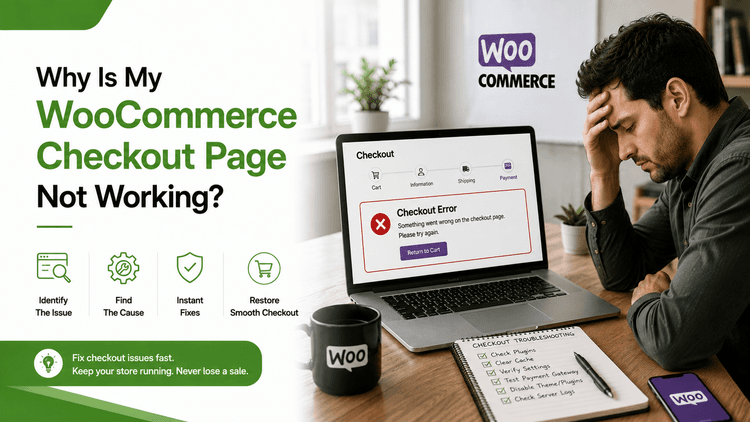
Table of Contents
Your checkout page can stop working for many reasons, including plugin conflicts, payment gateway failures, outdated themes, server issues, caching, or recent WooCommerce updates. The good news is that most of these problems can be identified and fixed without rebuilding your entire store.
Since the checkout is where every purchase is completed, even a small issue can lead to abandoned carts, lost sales, and frustrated customers. Whether your checkout page keeps loading, displays an error, or refuses to process payments, finding the root cause quickly is essential.
In this guide, we'll explain the most common reasons behind WooCommerce checkout not working, how you can hire developers on demand, and the best practices to keep your WooCommerce store running smoothly.
Why Can a Broken Checkout Cost More Than Just Lost Orders?
Many businesses assume a checkout issue is simply a temporary technical glitch. In reality, it affects every part of your ecommerce operation. Every customer who reaches the checkout page has already invested time browsing products, comparing prices, and deciding to buy.
For many online stores, checkout is the highest-value page on the website. If it becomes unavailable, advertising campaigns, marketing emails continue generating clicks, and social media promotions continue attracting visitors.
The financial impact becomes even greater during seasonal campaigns, product launches, or festive sales when transaction volumes are at their highest. A checkout failure during these periods can result in significant revenue loss within just a few hours.
Beyond immediate sales losses, repeated checkout issues can also affect customer retention and long-term growth. Businesses that monitor and maintain their checkout experience consistently are far better positioned to convert visitors into repeat customers.
Common Signs Your WooCommerce Checkout Has Stopped Working
A checkout issue doesn't always display an obvious error message.
Issue | Possible Cause | Recommended Fix |
Checkout page keeps loading | JavaScript conflict or server timeout | Disable conflicting plugins and check browser console |
Payment failed | Incorrect payment gateway settings | Verify API keys and test gateway configuration |
Place Order button not working | Theme or plugin conflict | Switch to a default theme and disable plugins one by one |
Shipping options missing | Incorrect shipping zone configuration | Review shipping settings and shipping methods |
Coupons not applying | Cache or plugin conflict | Clear cache and check coupon restrictions |
Order not completing | Database or payment gateway issue | Review WooCommerce logs and payment logs |
White screen during checkout | PHP fatal error | Enable WordPress debugging and check error logs |
The Checkout Page Keeps Loading Indefinitely
One of the most common symptoms is an endless loading spinner after clicking the checkout or payment button. This usually indicates that WooCommerce is waiting for a response from another service. Such as a payment gateway, shipping provider, or server-side process.
Slow database queries, exhausted server resources, or JavaScript conflicts can also prevent the page from completing the checkout request.
The "Place Order" Button Doesn't Respond
If clicking the button produces no action, the issue is often related to JavaScript errors, conflicting plugins, or validation failures that prevent WooCommerce from submitting the checkout form.
Customers may assume the website is broken and leave without attempting another purchase.
Payment Is Declined Even Though Customer Details Are Correct
Sometimes the checkout appears to work until payment processing begins. Customers enter valid payment information but receive repeated transaction failures.
These errors are frequently linked to expired API credentials, incorrect gateway settings, SSL certificate problems, unsupported currencies, or temporary payment provider outages.
Customers Are Redirected Back to the Cart
Instead of completing the order, WooCommerce sends customers back to the shopping cart. This typically happens when sessions expire unexpectedly; cached pages interfere with checkout, or validation rules detect missing information.
Orders Are Created Without Successful Payments
In some situations, WooCommerce records an order, but the payment is never completed. This creates confusion for both customers and store administrators, often requiring manual verification before orders can be fulfilled. If you're planning major customizations or scaling your online store, it's worth considering expert assistance through hire ecommerce developer services.
Checkout Works on Desktop but Not Mobile
Mobile users often experience layout issues, hidden buttons, overlapping elements, or payment gateway incompatibilities that aren't visible on desktop devices. Since mobile commerce continues to grow, even small usability issues can significantly reduce conversions.
What are the Root Causes Behind the WooCommerce Checkouts Not Working?
Here are the reasons that cause WooCommerce issues.
Cause | What Happens | Business Impact |
Plugin conflicts | Checkout page crashes or fields disappear | Lost sales |
Theme issues | Buttons or forms stop responding | Poor user experience |
Payment gateway errors | Payments fail or remain pending | Abandoned orders |
JavaScript conflicts | Loading spinner never ends | Customers leave |
Server configuration problems | Checkout becomes slow or unavailable | Revenue loss |
Cache problems | Old checkout data loads repeatedly | Failed transactions |
SSL or HTTPS errors | Browser blocks payment process | Security warnings |
Outdated WooCommerce version | Features stop working correctly | Compatibility issues |
Plugin Conflicts: The Most Common Reason WooCommerce Checkout Stops Working
If there's one issue behind most checkout failures, it's plugin conflicts. WooCommerce is highly flexible because it supports thousands of extensions, allowing businesses to add payment gateways, shipping providers, loyalty programs, subscriptions, marketing tools, analytics, and countless other features. While this flexibility is one of WooCommerce's biggest strengths, it also increases the chances of compatibility issues.
One of the easiest ways to identify a plugin conflict is to review recent changes. Ask yourself:
Did the issue begin after updating WooCommerce?
Has a new extension been installed recently?
Did the hosting provider update PHP?
Is there any custom functionality added to the website?
Outdated Themes Can Quietly Break Your Checkout
Many WooCommerce store owners invest in custom themes to create a unique shopping experience. While customizations improve branding and user experience, they can also become a source of checkout problems if they aren't maintained alongside WooCommerce updates.
If your store uses a heavily customized theme, avoid making direct modifications to the parent's theme.
Instead, use child themes and document every customization carefully. This makes future updates much safer and reduces the likelihood that WooCommerce checkout breaks after routine platform upgrades. Or get a ecommerce development company for full store rebuild expertise.
Regularly reviewing WooCommerce's template status under WooCommerce > Status can also help identify outdated template files before they begin causing customer-facing issues.
Payment Gateway Problems That Prevent Customers from Completing Orders
A customer reaching the payment page is already close to making a purchase. Unfortunately, this is also where many checkout failures occur.
Payment gateways act as the bridge between your WooCommerce store and financial institutions. Every transaction requires multiple secure communications involving payment authorization, fraud checks, encryption, and confirmation of responses.
It's equally valuable to monitor payment gateway logs within WooCommerce. These logs often provide detailed error messages that point directly to the source of the problem, making troubleshooting significantly faster than relying on customer complaints alone.
A reliable payment experience builds customer confidence. Regular maintenance, timely updates, and proactive monitoring ensure that payment processing remains smooth even during periods of heavy traffic.
Caching Can Improve Speed or Completely Break Checkout
Website caching is designed to improve loading speeds by serving pre-generated versions of web pages instead of rebuilding them for every visitor. While this works exceptionally well for product pages, blog articles, and category pages, checkout pages operate very differently.
After making changes, clear all layers of cache, including browser cache, plugin cache, server cache, and CDN cache. In many cases, simply purging outdated cached content resolves issues that appeared after recent updates or configuration changes.
While caching remains essential for website performance, applying it selectively ensures that customers always receive accurate, real-time checkout information and a seamless purchasing experience.
Check Your Payment Gateway Configuration
One of the most common reasons for a WooCommerce checkout failure is a payment gateway that is configured correctly. Customers may be able to add products to the cart without any issues, but the moment they click Place Order, the transaction fails, keeps loading, or displays an error message. You can easily reach out for a payment gateway fix from a renowned ecommerce firm.
This often happens after changing API credentials, switching payment providers, enabling test mode by mistake, or updating WooCommerce without reviewing gateway compatibility. Sometimes, the gateway itself works, but communication between your store and the payment provider is interrupted.
A few common payment gateway issues include:
Incorrect API keys or authentication credentials
Expired SSL certificates
Test mode enabled on a live store
Payment gateway plugins that haven't been updated
Unsupported currency or country settings
Failed webhook or callback connections
Theme Compatibility Issues Can Quietly Break Checkout
Many WooCommerce store owners customize their storefront using premium themes or page builders. While these themes improve appearance, they sometimes introduce code conflicts that interfere with WooCommerce functionality.
After a theme update, you may notice that checkout buttons disappear, billing fields stop loading, shipping options don't display, or the order review section behaves unexpectedly. These problems are particularly common when themes override WooCommerce templates but fail to update them after a new WooCommerce release.
A checkout page may look perfectly designed while important functionality is broken underneath.
Plugin Conflicts Are the Biggest Reason Checkout Stops Working
WooCommerce stores typically rely on multiple plugins for shipping, taxes, marketing, subscriptions, loyalty programs, analytics, security, and payment processing. While each plugin serves a useful purpose, conflicts between them are one of the leading causes of a Broken WooCommerce Checkout.
Typical symptoms include:
Checkout page keeps spinning
"Place Order" button doesn't respond
Billing form refuses to validate
Shipping methods disappear
Payment options fail to load
JavaScript errors appear in the browser console
These issues usually occur because two plugins try to modify the same WooCommerce process or load conflicting JavaScript files.
Server, Hosting, and Cache Problems That Interrupt Checkout
Sometimes the issue isn't WooCommerce itself. Your checkout page may stop functioning because the server can't process requests fast enough; the hosting environment is under heavy load, or cached files are serving outdated information.
This is especially common during seasonal sales, product launches, or marketing campaigns when hundreds of customers try to check out simultaneously. What starts as a slow website can quickly turn into a complete checkout failure if the server runs out of available resources. If checkout breaks during a sale, on-demand ecommerce support for WooCommerce can start in a 4-hour session.
Shared hosting plans are particularly vulnerable because multiple websites compete for the same CPU, memory, and bandwidth. Even if your storefront loads, backend processes like payment verification, order creation, and inventory updates may fail.
Browser, Device, and JavaScript Errors Can Break Checkout
A checkout page may work perfectly for one customer while failing for another. In many cases, the problem isn't your store; it lies within the customer's browser triggered on certain devices.
WooCommerce depends heavily on JavaScript to validate forms, update shipping charges, refresh totals, calculate taxes, and process payments without reloading the page.
Some common causes include:
Browser extensions blocking scripts
Cached browser files
Minified JavaScript conflicts
CDN optimization issues
Third-party tracking scripts
Recently added marketing pixels
Database Errors Can Cause Hidden Checkout Problems
Every WooCommerce order relies on your WordPress database. Customer information, product details, shipping methods, payment records, inventory, coupons, and order statuses are all stored there. If the database becomes corrupted or overloaded, the checkout process may fail even though the website appears to function normally.
Large WooCommerce stores often accumulate thousands of expired sessions, old revisions, transients, and orphaned records over time. As the database grows, queries become slower, which directly affects checkout speed and reliability.
Some indicators of database-related issues include:
Orders that remain in "Pending Payment."
Duplicate orders.
Failed coupon validation.
Slow checkout processing.
Cart information disappeared unexpectedly.
Random database connection errors.
How to Prevent WooCommerce Checkout Issues Before They Affect Sales?
Instead of waiting for a customer to report a failed purchase, create a routine that keeps your checkout healthy.
Table | Purpose |
Common Checkout Symptoms vs Causes | Quick diagnosis |
Plugin Conflict Checklist | Troubleshooting guide |
Payment Gateway Verification Checklist | Configuration audit |
Server Issues vs Impact | Technical troubleshooting |
Checkout Testing Checklist | QA process |
WooCommerce Maintenance Schedule | Preventive care |
Error Messages vs Recommended Fixes | Fast reference |
Business Impact of Checkout Downtime | Executive summary |
Keep WooCommerce, Themes, and Plugins Updated
Running outdated software is one of the fastest ways to introduce compatibility issues. Every WooCommerce release includes bug fixes, security improvements, and support for newer versions of WordPress and PHP. Similarly, plugin developers frequently release updates to maintain compatibility with the latest WooCommerce version.
However, updating everything directly on your live website isn't recommended. Always test updates in a staging environment before deploying them to production. This helps identify conflicts without interrupting customer purchases.
Create a regular maintenance schedule to:
Update WooCommerce after compatibility testing.
Install plugin and theme updates.
Remove inactive or abandoned plugins.
Review extension compatibility after every major update.
Verify checkout functionality after changes.
A five-minute checkout test after each update can prevent hours of emergency troubleshooting later.
Monitor Store Performance Continuously
Checkout performance isn't just about whether the page loads it also depends on how quickly every step responds. Slow servers, delayed payment requests, and overloaded databases can gradually reduce checkout reliability without causing obvious errors.
Use website monitoring tools to keep track of:
Server response times
Checkout page speed
Database performance
Payment gateway response time
Website uptime
Error logs
Monitoring allows your team to identify unusual behavior before customers experience problems.
Test the Entire Purchase Journey Regularly
Many businesses test only the homepage or product pages after making changes. Unfortunately, customers don't generate revenue by browsing and they generate revenue by completing purchases.
Make it a habit to perform complete test purchases every week.
Your testing checklist should include:
Adding products to the cart
Applying coupons
Selecting shipping methods
Testing multiple payment gateways
Completing an order
Receiving confirmation emails
Viewing orders in the admin dashboard
Back Up Your Store Before Every Major Change
No matter how experienced your development team is, unexpected issues can still occur. A plugin update, server migration, or customization may accidentally cause the WooCommerce checkout not working issue.
That's why reliable backups are essential.
Before making any significant changes, ensure you have:
A complete website backup
A database backup
Theme and plugin backups
Backup verification to confirm restoration works correctly
If something goes wrong, you can restore your store within minutes instead of rebuilding it from scratch.
Automatic daily backups are recommended, especially for stores processing frequent orders.
When Should You Bring WooCommerce Experts?
Some checkout issues can be fixed within minutes by clearing a cache or updating a plugin. Others are far more complex, involving custom code, server configurations, third-party integrations, or database conflicts.
If your checkout continues to fail despite following standard troubleshooting steps, it's often more cost-effective to involve experienced WooCommerce developers rather than spending days trying to isolate the problem internally.
Professional support becomes especially valuable when your store experiences:
Frequent checkout failures
Random payment errors
Plugin compatibility conflicts
Performance bottlenecks during high traffic
Custom checkout functionality breaking after updates
Security vulnerabilities affecting transactions
For businesses that rely heavily on online sales, prolonged checkout downtime directly impacts revenue, customer trust, and brand reputation.
Likewise, if your store includes heavily customized themes or JavaScript-based checkout experiences, working with a hire frontend developer can help ensure every customer interaction remains fast, responsive, and reliable.
Conclusion
A checkout page is the final and most important step in your customer's buying journey. Even minor technical issues can interrupt purchases, increase cart abandonment, and reduce customer confidence. The good news is that most WooCommerce checkout problems are preventable with regular maintenance, timely updates, proper testing, and a structured troubleshooting approach.
Whether the issue stems from a conflicting plugin, an outdated theme, payment of gateway errors, server limitations, or database performance, identifying the root cause early can save both time and revenue.
FAQs
Why is my WooCommerce checkout not working?
A WooCommerce checkout not working issue can occur due to plugin conflicts, outdated themes, payment gateway errors, server configuration problems, JavaScript issues, or corrupted WooCommerce settings. Start by checking recent updates, disabling conflicting plugins, and testing your payment gateway to identify the root cause.
What causes WooCommerce checkout failure after an update?
A WooCommerce checkout failure after an update is usually caused by incompatible plugins, outdated themes, or custom code that no longer supports the latest WooCommerce version. Testing updates in a staging environment before applying them to your live store can help prevent these issues.
How do I fix a Broken WooCommerce Checkout page?
To fix a Broken WooCommerce Checkout, first clear your website and browser cache, disable recently installed plugins, switch temporarily to a default WooCommerce-compatible theme, verify your payment gateway settings, and review WooCommerce error logs.
Why does my WooCommerce checkout page keep loading or freezing?
If your checkout page keeps loading indefinitely, the problem is often related to JavaScript errors, slow server response, payment gateway timeouts, caching conflicts, or third-party plugin incompatibility. Reviewing browser console errors and WooCommerce logs can help pinpoint the exact cause.
How can I prevent WooCommerce checkout problems in the future?
The best way to avoid recurring WooCommerce checkout problems is to keep WooCommerce, themes, and plugins updated, regularly test the checkout process, monitor website performance, exclude checkout pages from caching, maintain reliable backups, and review your payment gateway configuration after every major update.